Inventory costing, payroll history, multi-currency and custom or memorized reports land differently depending on where the file comes from, and each needs a decision made on purpose rather than discovered after cutover. For a Desktop file, the decision matrix lists what Intuit's conversion does with each of them, and the Desktop-to-Online page covers the edge cases in full. An Enterprise file adds advanced inventory, user counts and custom reports to the plan. A Xero or Sage file is mapped by hand, account by account, and checked the same way.
QuickBooks migration
QuickBooks migration services
Proven to reconcile before you go live.
QuickBooks migration is the hub for every move we run — Desktop to Online, version to version, Enterprise, and other software into QuickBooks — and each one moves accounts, customers and vendors, open items, history and balances in four stages: source, mapping, validation and cutover. The converted file is reconciled back to the old system before you go live.
Coming from Xero, Sage or another system? Migrating to QuickBooks from other software.
Last reviewed October 2026 by a Certified QuickBooks ProAdvisor
What this page is based on: our reconciliation-first methodology and Intuit’s own conversion and Condense Data help (checked October 2026)
Migration · what converts
Read this as text
Two columns. What converts with the file: chart of accounts, customers and vendors, open accounts receivable and payable, transaction history, account balances, and bank and card history — each marked with a verified tick. What is rebuilt in the new file after cutover: memorized reports, recurring transactions, custom form templates, reconciliation reports, some payroll detail, and third-party app links. Illustrative — the exact split depends on your file and the destination product.
- Data moved, not retyped
- Reconciled to the old file
- Fixed scope, quoted first
What a QuickBooks migration is
A QuickBooks migration is the work of moving an accounting file's data — its accounts, names, open balances, and transaction history — from one system into another, so the new file continues the story of the old one instead of starting a blank page.
That is different from setting up a fresh company file. A fresh file begins at zero; a migration carries your existing chart of accounts, your customers and vendors, your open invoices and unpaid bills, and the history behind your prior-period reports into the destination. The destination is usually QuickBooks Online, and the source is usually QuickBooks Desktop — but the same discipline applies whether you are moving Desktop to Online, moving Enterprise to QuickBooks Online Advanced, or coming to QuickBooks from Xero or Sage. Our real specialty is QuickBooks bookkeeping with a reconciliation-first method, so we frame every migration the same honest way: we move the data, then we prove the converted file reconciles to the system it came from.
Which QuickBooks migration you need
The right QuickBooks migration path depends on where your data lives now and where it is going — Desktop to Online is the most common, but coming from Enterprise, or from another product entirely, each has its own considerations. Find your situation below.
- QuickBooks Desktop to Online migration — the most common move, and the one most people mean by "migration." What carries over, what changes in QBO, and how the file reconciles after.
- QuickBooks Online vs. Desktop — not sure you should move at all? A straight, honest comparison of the two products before you decide.
- QuickBooks Desktop end of life — what Intuit's shift away from Desktop actually means for your file, what still works, and your options.
- QuickBooks Enterprise migration — Enterprise to QuickBooks Online Advanced: user counts, advanced inventory, custom reports, and when Enterprise should stay put.
- QuickBooks data conversion — the technical heart of any migration: how lists and history map across, and how the result is validated.
- QuickBooks Desktop migration cost — what actually drives the price of a migration, with every figure tied to your file rather than a fixed sticker.
- Migrate to QuickBooks — coming to QuickBooks from another accounting system, and the general process for any source.
- Xero to QuickBooks migration — moving a Xero organization into QuickBooks: what moves, what to expect, and how we validate it.
- Sage to QuickBooks migration — moving from Sage, including remapping the chart of accounts and reconciling the converted result.
Two limits apply to every Desktop-to-Online move, whoever runs it: Intuit's US import window is 90 calendar days from creating the Online company (180 if your accountant created it), and the Desktop file's Total Targets count must be below 4,000,000 (Intuit, checked October 2026). The full rule set, and how we plan around each one, is on the Desktop-to-Online migration page. And if "migration" for you means moving QuickBooks Desktop to a new computer, that is a reinstall and a restore from backup rather than a data conversion — Intuit's support covers it.
Moving to QuickBooks Online Advanced or Intuit Enterprise Suite? Intuit includes migration support with an implementation consultant for existing Desktop and Enterprise customers — Intuit says it is free for a limited time and that some data may not be eligible (Intuit, checked October 2026), and its transfer article lists memorized reports among what does not move (Intuit, updated 10/13/2026). Ask Intuit which cleanup and post-migration checks are included for your file. QBSpecialist's written scope identifies any pre-migration cleanup and the account-by-account validation included in the engagement.
If none of these is obviously yours, or you are weighing whether to move now or wait, start with a free QuickBooks review — we will tell you which path fits and whether it is worth doing yet.
What actually moves vs. what you rebuild
In a migration, structural data moves with the file and software-specific items are rebuilt in the new one. Your accounts, names, open balances, and posted history convert; things that live only inside the old program's settings — memorized reports, recurring templates, reconciliation report history — are recreated after the move.
Which of your items fall in each bucket depends on the source. For a QuickBooks Desktop file, Intuit's own lists — what moves as it is, what moves but changes, what does not move, and what we do about each — are in the Desktop-to-Online decision matrix. For Enterprise, Xero or Sage, the source's own page says what that system carries across. Either way, we list which of yours need rebuilding before we move, so nothing you rely on quietly disappears.
Two rebuilds catch people out after a move to QuickBooks Online. Users don't come across: Intuit lists users and permissions among the things that don't move, so every person is re-invited with a role, and your accountant through the accountant invitation. Bank connections are set up again, and the first downloads have to be matched against what the converted history already holds, or the same month lands twice.
The four stages
How we migrate: source, mapping, validation, cutover
Every migration runs the same four stages in order, whatever the source: read it, map it, check the result against it, then switch over. Nothing goes live until the check passes.
The migration flow
Read this as text
Four stages left to right. Stage 1, Source: your old system, the source of truth. Stage 2, Mapping: lists, balances, and history are mapped and converted to the destination. Stage 3, Validation: the converted file is reconciled to the old one and proven to tie — the stage marked with a verified tick. Stage 4, Cutover: you go live in QuickBooks. The flow runs from a reconciled source of truth to a reconciled, live file.
Source
Stage 1
The old system — Desktop, Enterprise, Xero or Sage — is read first and treated as the record, and the reports the new file will be checked against are saved before anything moves.
Mapping
Stage 2
Each account and name gets a home in the destination; anything the conversion cannot carry is listed for rebuilding before the move, not after it.
Validation
Stage 3
The new file is checked against the saved reports — trial balance first, then the balance sheet and open items — until every difference is explained.
Cutover
Stage 4
You start working in the new file only after that check passes, with the rebuilt reports in place and the mapping decisions written down.
How we prove the migration reconciled
A migration is proven by checking the new file against the old one before you rely on it: the trial balance, the balance sheet and the open items have to agree, and every difference is explained rather than adjusted away. If the file will not reconcile, we do not cut over — we find out why first.
The method behind that check is in our methodology and the bank reconciliation reference. For a Desktop file, the six checks we run after the move are listed with the Desktop-to-Online decision matrix.
Scope and acceptance
What a migration covers, and what done means
Migration or setup: Custom fixed quote. This is the written scope in short: what is in, what is not, what moves the quote, your part, and the test the work has to pass.
- Included
- Mapping, conversion and validation: the converted file's trial balance, balance sheet, open A/R and A/P and bank balances checked against the old file, and a written record of every mapping decision.
- Not included
- Preparing or filing tax returns, running payroll, and the QuickBooks subscription; items Intuit's conversion does not move are rebuilt only where the written scope lists them.
- What changes the quote
- Data volume, the file's age and health, the version (Enterprise adds work), inventory and payroll, each integration, and whether the file needs cleanup before it moves.
- Your part
- Admin access on both files, a cut-off you agree to, and a check of the converted file against your own records before go-live.
- Done means
- The converted file reconciles to the old one as of the conversion date — trial balance, balance sheet and open items — before you go live.
What it costs
What a QuickBooks migration costs
A migration is a fixed fee quoted after a free review, starting from $1,500. What moves the number is the size and age of the file, the add-ons it carries, and whether it needs cleanup before it moves — never a surprise at the end.
| Engagement | Starting price | Planned timeline | What's included |
|---|---|---|---|
| Standard migration | From $1,500 | Scoped at review | Move a tidy file — chart of accounts, names, open items, history, and balances — and reconcile the result to the old system. |
| Complex or large file | Custom fixed quote | Scoped at review | Large history, inventory, payroll, multi-currency, or Enterprise-to-Advanced moves that need extra mapping and validation. |
| Cleanup + migration | Custom fixed quote | Scoped at review | Fix the old file first, then migrate — so you move a clean book, not the mess, into the new system. |
The figures above are floors, not quotes — a free view-only review sets the fixed price for your file. For a full breakdown of what drives the price — data volume, version age, add-ons, and whether the file needs a cleanup first — see the QuickBooks Desktop migration cost page. The timeline is scoped the same way — the migration timeline calculator gives a rough duration from your file's size and add-ons before the review firms it up. As a rule, it is cheaper to clean a file before you move it than to untangle the same mess twice, once in each system.
Migration edge cases: inventory, payroll, multi-currency, and custom reports
Which approach?
Migrating the existing file vs. starting fresh
Migrating keeps your history and prior-period reports intact; starting fresh gives you a clean file but leaves that history behind. The right choice depends on how much of the past you need and how healthy the old file is.
| Migrate the file | Start fresh | |
|---|---|---|
| Keeps prior-period history | ||
| Carries open A/R and A/P | manual entry | |
| Prior reports still tie | ||
| Leaves old mess behind | only if cleaned first | |
| Setup effort | Mapping & validation | New setup from zero |
| Best when | You need continuity of history | The old file is beyond saving |
| Verdict | History preserved, proven to tie | Clean slate, history stays behind |
There is no universally right answer, and we will say which one fits your file plainly. Often the best path is a middle one: clean the old file, then migrate it — so you move continuity and a tidy book. A third route keeps your lists without the history: QuickBooks Desktop's Condense Data utility can remove the transactions you select and the list entries you no longer use, but Intuit says a condensed file can't be undone (checked October 2026) — so it runs on a backup copy, after every account is reconciled and its reports are saved. If you are still weighing the products themselves rather than the method, the QuickBooks Online vs. Desktop comparison is the place to start.
How QBSpecialist's migration is different
The same hands run the migration end to end — one specialist, never a rotating pool — from a mapping you approve before anything moves, not a black-box tool and a shrug. Every migration ends with the converted file reconciled to the old one, and a written record of what moved, what was rebuilt, and how the numbers tie.
The difference is where the effort goes. A conversion tool can push data across in an afternoon; the value is in the validation that proves it landed correctly, and in the honesty about what does not carry over. The free review runs on view-only access; the migration itself uses QuickBooks' accountant access to make and log every change — never your bank logins — with screen-share you control where a source system allows nothing less. If your file would be better cleaned before it moves, we tell you, because moving a mess just relocates it. And if the migration will not reconcile, we do not cut over and hope; we find the cause first. That is the whole point of hiring a specialist instead of running the wizard yourself.
When not to hire us for a migration
Skip us when the move is genuinely simple or premature. A tiny, tidy file with almost no history can often move through QuickBooks' own guided tools in an hour, and a business that does not actually need to leave its current product should not pay to move for the sake of it.
If you have a brand-new file with a handful of transactions, migrating it is barely more work than typing it in, and you may not need help at all — our Desktop-to-Online migration guide walks the DIY route stage by stage, and the Desktop-to-Online checklist keeps the steps in order while you run it. If your QuickBooks Desktop version is still fully serviced and does everything you need, "you should migrate eventually" is not the same as "you should migrate today" — waiting is a legitimate choice, and the end-of-life page lays out the real timeline so you can judge it. And if the honest answer is that your file needs a cleanup more than it needs a new home, we will tell you that too. We would rather point you to the right, smaller step than sell you a migration you do not need — and we will say which case you are in during the free review, even when the answer is "not yet."
What our QuickBooks migration documents
You do not have to take our word for it. Here is the evidence you can check — the deliverable you receive, the method we use to prove the converted file reconciles, and our response commitment.
Who’s responsible for your file
A Certified QuickBooks ProAdvisor handles your file from the review through the corrections to the hand-back — the same person throughout, never a rotating pool.
About QBSpecialist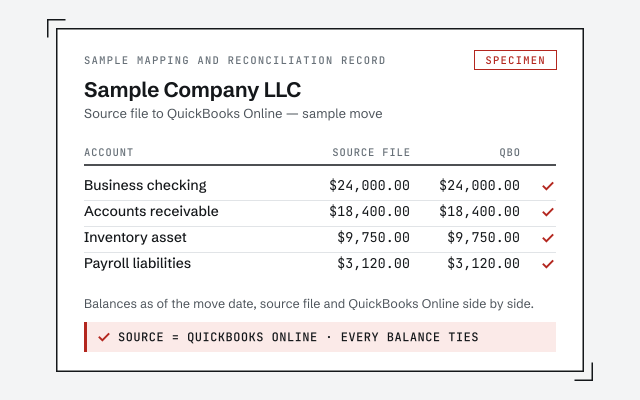 Illustrative example — not a client file.
Sample mapping and reconciliation record
The written map of what moved, what was rebuilt, and the before-and-after reconciliation you receive when a migration closes.
Our methodology
How we prove the converted file reconciles to the old one. Read exactly how.
Read the full methodResponse commitment
A written reply within one business day.
Remote-first, nationwide
Mon–Sat · 8am–6pm CT
We migrate entirely remote — view-only access for the free review, QuickBooks' accountant access for the migration itself, every change visible to you in the audit log, and every mapping decision documented in writing before cutover.
- All 50 states
- Remote-first
- View-only review
Questions about QuickBooks migration
What does a QuickBooks migration actually move?
A migration moves the structural data — your chart of accounts, customers, vendors, open invoices and bills, transaction history, and account balances — into the new file. Things that are software-specific, like memorized reports, recurring templates, and reconciliation report history, are rebuilt in the new file rather than carried over.
How long does a QuickBooks migration take?
It depends on the size and age of the file and whether it needs cleanup first. A migration is usually planned at one to three weeks; your written scope sets the finish date. A large file with years of history, inventory, or payroll can take longer. We scope the real timeline during the free review, before any work starts, so you are not guessing.
Will my historical reports survive the migration?
The numbers behind them do. Because we carry the transaction history and balances across, your profit and loss and balance sheet for prior periods still add up in the new file. Some report layouts and memorized reports have to be rebuilt, but the underlying figures they draw on come with the data.
How do you prove the migration was accurate?
We reconcile the converted file back to the old one. Before cutover we save the old system's trial balance and key reports, then confirm the new file produces the same balances to the penny. Migration without that proof is just hoping the numbers matched; the validation stage is where we show they did.
How much does a QuickBooks migration cost?
Pricing is a fixed fee quoted after a free review, starting from $1,500. What moves the number is data volume, the age and health of the file, add-ons like inventory or payroll, and whether the file needs cleanup before it moves. We never quote blind, and there is no surprise number at the end.
Can I keep using QuickBooks Desktop instead of migrating?
Sometimes, yes. If Desktop still does everything you need and your version is still receiving service, there is no rule that says you must move. But Intuit has shifted its focus to QuickBooks Online, new QuickBooks Desktop Plus subscriptions stopped after September 30, 2024, and Desktop 2023 lost payroll, payments, bank feeds and security updates after May 31, 2026. Intuit says Desktop 2024 has no sunset date, so the pressure is direction rather than a deadline: for many files the move is a question of when, not if.
Does everything transfer from Desktop to Online?
No, and any honest migration answer says so up front. Lists, balances, and most transaction history carry over, but QuickBooks Online handles some things differently — inventory costing, certain report types, memorized transactions, and some payroll detail. We map exactly what changes for your file before we move it, so there are no surprises after cutover.
Will I lose any data in the migration?
We will not promise zero loss, because no honest migration does — some software-specific items are rebuilt rather than carried, and we tell you which before anything moves. What we do promise is proof: your old file stays intact as the record we reconcile against, and the converted file has to match its trial balance to the penny before cutover. Nothing disappears silently.
What happens to my old QuickBooks file after the migration?
It stays put. A migration copies your data into the new file; it does not erase the source. We keep the old system's trial balance and key reports as the record the new file was reconciled against, so if a question ever comes up about a prior period, the original answer is still there to check.
Can you migrate from Xero or Sage to QuickBooks?
Yes. Coming from another accounting system, we map the source file's chart of accounts and balances to QuickBooks, bring across what converts, and reconcile the result to your old reports. The framework is the same as a Desktop-to-Online move: map, convert, then prove it ties out.
Does 'QuickBooks migration' mean moving QuickBooks to a new computer?
Sometimes — and that is a different job. Moving QuickBooks Desktop to a new computer is a reinstall plus a restore of your company file from a backup; your data does not change product, so nothing is mapped or converted. Intuit's support covers the steps. This page is about moving the data itself: Desktop to Online, Enterprise to Online Advanced, or another system into QuickBooks.
Is it better to migrate or start a fresh QuickBooks file?
Migrating keeps your prior-period reporting intact but carries any existing mess with it; starting fresh gives you a clean slate but leaves your history behind in the old file. The deciding factors are how much history you need and how healthy the file is. We weigh both with you plainly during the review — sometimes a cleanup first, then a migration, is the right order.
- Virtual QuickBooks bookkeeping— the monthly work that follows a finished migration
- Bookkeeping— how the books are kept inside QuickBooks once the move is done
- Setup— a new file instead of a converted one, when the history isn't worth moving
Not sure how bad it is?
Talk to a QuickBooks specialist.
Describe the file and a specialist will tell you which of these you are dealing with — including when the answer is that you don't need us.