Skip to content
QB Specialist

QuickBooks Desktop to Online migration

Desktop to Online, proven to reconcile.

A QuickBooks Desktop to Online migration moves your file — chart of accounts, customers and vendors, open invoices and bills, transaction history, and balances — from Desktop into QuickBooks Online. We run it in four stages: source, mapping, validation, and cutover. The stage that matters most is validation, where we reconcile the converted QBO file back to Desktop and prove the numbers tie before you go live.

Last reviewed July 2026

  • Data moved, not retyped
  • Reconciled back to Desktop
  • Fixed scope, quoted first

What moving QuickBooks Desktop to Online involves

Moving QuickBooks Desktop to Online is the work of carrying a Desktop company file's data — its accounts, names, open balances, and transaction history — into a QuickBooks Online company, so the new file continues the story of the old one instead of starting a blank page.

That is different from setting up a fresh QuickBooks Online company. A fresh file begins at zero; a migration brings your existing chart of accounts, your customers and vendors, your open invoices and unpaid bills, and the history behind your prior-period reports across to QBO. It is the most common move in the whole QuickBooks migration picture — the one most people mean when they say "migration" — and it is the money move for most Desktop users as Intuit continues shifting toward Online. Our real specialty is QuickBooks bookkeeping with a reconciliation-first method, so we frame the move the same honest way every time: we convert the data, then we prove the QuickBooks Online file reconciles back to the Desktop file it came from.

Who should move to QuickBooks Online — and who can wait

You should move when Desktop is starting to work against you — you want browser and mobile access, you need your accountant or team in the file at the same time, or your Desktop version is aging out of payroll, payments, and security service. You can wait when your version is still fully serviced and does everything you need.

The trend is real, and worth stating plainly and without exaggeration. Intuit has shifted its focus to QuickBooks Online, new Desktop subscriptions are no longer sold to most new U.S. businesses, and each annual Desktop version stops receiving payroll, payments, and critical security updates roughly three years after it ships. That does not mean your file stops opening on a fixed date — an installed Desktop file keeps working locally — but it does mean the connected services around it wind down, which is what usually forces the decision. If any of these describe you, the move is worth planning now rather than under pressure:

  • You want to work from a browser or phone, not one installed machine.
  • You need multiple people — or your CPA — in the books at once, without passing a file around.
  • Your Desktop version is old enough that payroll or payments have stopped, or are about to.
  • You are adding apps — payments, expense, e-commerce — that connect natively to QBO.

If none of these bite yet, waiting is a legitimate choice, and the QuickBooks Desktop end-of-life page lays out what the wind-down actually means for your file so you can judge the timing yourself.

What carries over vs. what changes in QuickBooks Online

Your structural data carries over; the software-specific pieces change or get rebuilt. Lists, account balances, open A/R and A/P, and posted transaction history convert with the file — while memorized transactions, some report layouts, the inventory costing method, and most payroll detail are recreated or set up deliberately in QuickBooks Online.

Desktop → Online · what maps

What carries from QuickBooks Desktop to Online versus what changes or rebuilds Two columns. What carries over to QuickBooks Online, each marked with a verified tick: chart of accounts and lists; customers, vendors and items; open accounts receivable and payable; and transaction history with balances. What changes or is rebuilt in QuickBooks Online after cutover: memorized transactions, custom report layouts, the inventory costing method, and payroll detail with year-to-date figures. Illustrative — the exact split depends on your file and QBO plan. CARRIES OVER TO QBO CHANGES OR REBUILDS Chart of accounts & lists Customers, vendors & items Open A/R and A/P Transaction history & balances Memorized transactions Custom report layouts Inventory costing method Payroll detail & YTD COMES ACROSS WITH THE FILE SET UP AGAIN IN QBO
The data that decides whether your reports are correct — lists, balances, open items, and history — carries into QuickBooks Online; program-specific conveniences like memorized transactions and the inventory method are rebuilt on the other side. The exact split depends on your file, so this is illustrative, not a fixed list.

The practical point is that a Desktop-to-Online move is not "everything or nothing." The parts that determine whether your books are right — balances and history — come across. The parts that are conveniences you set up once — a memorized invoice, a saved report view, an estimate template — are recreated in QBO, and we list exactly which of yours fall in that bucket before we move, so nothing you rely on quietly disappears at cutover. The technical mechanics of how each list and history record maps across are covered in QuickBooks data conversion.

The four stages

The four-stage process: source, mapping, validation, cutover

Every Desktop-to-Online move runs the same four stages in order: read the Desktop file, map it to QuickBooks Online, validate the converted result against Desktop, then cut over. The order is deliberate — nothing goes live until it has been proven to reconcile.

The migration flow

How a Desktop-to-Online migration runs: source, mapping, validation, cutover Four stages left to right. Stage 1, Source: QuickBooks Desktop, the source of truth. Stage 2, Mapping: lists, balances, and history are mapped and converted to QuickBooks Online. Stage 3, Validation: the converted file is reconciled to Desktop and proven to tie — the stage marked with a verified tick. Stage 4, Cutover: you go live in QuickBooks Online. The flow runs from a reconciled source of truth to a reconciled, live file. STAGE 1 STAGE 2 STAGE 3 STAGE 4 Source Mapping Validation Cutover QB DESKTOP MAP & CONVERT RECONCILE GO LIVE QuickBooks Desktop Lists, balances, history Prove it reconciles Live in QBO SOURCE OF TRUTH RECONCILED & LIVE
A Desktop-to-Online migration runs source to cutover, but the load-bearing stage is validation: the converted QuickBooks Online file is reconciled back to Desktop and proven to tie before anyone goes live. This four-stage pattern is the same for every path in the migration cluster.
  1. Source

    Stage 1

    We read the Desktop file as the source of truth — its chart of accounts, lists, open items, history, and balances — and save the reports we will later reconcile against.

  2. Mapping

    Stage 2

    Every account, name, and balance is mapped to where it belongs in QuickBooks Online, and we flag exactly what converts and what has to be rebuilt.

  3. Validation

    Stage 3

    The converted QBO file is reconciled back to Desktop: same trial balance, same key reports, to the penny — the proof stage that ties to our method.

  4. Cutover

    Stage 4

    Only once the file reconciles do you go live in QuickBooks Online, with the rebuilt reports and templates in place and a written record of every mapping decision.

How long a Desktop-to-Online migration takes

Most Desktop-to-Online moves land inside one to three weeks, but the honest answer is that it depends on the file: its size, its age, the add-ons it carries, and whether it needs a cleanup before it moves. A small, tidy file can convert in a few days; a large file with years of history, inventory, and payroll needs longer for mapping and validation.

What actually drives the clock is not the data transfer — that part is quick — but the mapping decisions and the reconciliation. Deciding how inventory lands, how payroll year-to-date is set up, and which reports get rebuilt takes deliberate work, and proving the converted file ties to Desktop takes more still. That is by design: we would rather spend the time up front and hand you a file that reconciles than move fast and leave you to discover a gap in month two. We scope the real timeline during the free review, before any work starts, so you are planning against a number rather than a hope.

How we prove the converted file reconciles

We prove the move by reconciling the QuickBooks Online file back to Desktop — same trial balance, same balance sheet, same key reports, to the penny — before you rely on it. Validation is not a courtesy step at the end; it is the reason to hire a specialist at all.

Anyone can push data through a conversion tool. The hard, valuable part is confirming that what came out the other side matches what went in. Our method is verification, not assertion: we save Desktop's trial balance and key statements before the move, then re-run them in QuickBooks Online and account for every difference until the two tie. That same reconciliation-first discipline runs through everything we do — it is why the move ends with proof rather than a promise. You can read exactly how the checking works in our methodology and in the bank reconciliation reference, which explains the core "difference resolves to zero" idea a validated migration depends on. If the file will not reconcile, we do not cut over — we find out why first.

What it costs

What a Desktop-to-Online migration costs

A Desktop-to-Online migration is a fixed fee quoted after a free review, starting from $1,500. What moves the number is the size and age of the file, the add-ons it carries — inventory, payroll, multi-currency — and whether it needs cleanup before it moves. Never a surprise at the end.

Desktop-to-Online migration engagement pricing
Engagement Typical range Timeline What's included
From $1,500 Scoped at review Move a tidy Desktop file — chart of accounts, names, open items, history, and balances — and reconcile the result to Desktop.
From $1,500 Scoped at review Large history, inventory, payroll, or multi-currency that needs extra mapping and validation before cutover.
From $1,500 Scoped at review Fix the Desktop file first, then migrate — so you move a clean book, not the mess, into QuickBooks Online.
Get your exact quote

Standard Desktop → Online

Typical range
From $1,500
Timeline
Scoped at review
Included
Move a tidy Desktop file — chart of accounts, names, open items, history, and balances — and reconcile the result to Desktop.

Complex or large file

Typical range
From $1,500
Timeline
Scoped at review
Included
Large history, inventory, payroll, or multi-currency that needs extra mapping and validation before cutover.

Cleanup + migration

Typical range
From $1,500
Timeline
Scoped at review
Included
Fix the Desktop file first, then migrate — so you move a clean book, not the mess, into QuickBooks Online.
Get your exact quote

The figures above stay tokenized until a real review sets a range for your file. For a full breakdown of what drives the price — data volume, version age, add-ons, and whether the file needs a cleanup first — see the QuickBooks Desktop migration cost page. As a rule, it is cheaper to clean a file before you move it than to untangle the same mess twice, once in each system.

Edge cases: inventory, payroll, multi-currency, and custom reports

The details that complicate a Desktop-to-Online move are the ones that live differently in each product: inventory costing, payroll history, multi-currency, and custom or memorized reports. None is a dealbreaker, but each needs a decision made on purpose rather than discovered after cutover.

Inventory and costing

Inventory is the classic edge case, because Desktop and Online can value stock differently and QBO may not carry item-level history the same way. We confirm how your items and quantities land, and reconcile the inventory asset balance so it matches Desktop, rather than assuming the conversion got it right. If your file leans heavily on Desktop's inventory features, we say so before you move.

Payroll history

Payroll detail often does not move cleanly, and pretending otherwise is where migrations go wrong. Year-to-date figures and prior filings usually need to be set up deliberately in QuickBooks Online, and we coordinate that with your payroll provider or CPA instead of hoping a tool carried it across.

Multi-currency and foreign balances

Files with foreign currency need their exchange settings and open foreign balances checked after conversion, because a rounding or rate difference here shows up as a reconciliation gap. We tie the converted balances back to Desktop before we call it done.

Custom and memorized reports

Custom report layouts and memorized reports are rebuilt, not moved — the figures behind them convert, but the saved views are recreated in QuickBooks Online. We note the reports you actually use and set them up again on the other side, so your month-end pack looks familiar after the move. Deeper, per-record mapping questions are covered in data conversion; heavier Enterprise files with advanced inventory or many users have their own path in Enterprise migration.

After the move

QuickBooks Desktop vs. Online after you move

Once you are in QuickBooks Online you trade Desktop's installed, local power for anywhere access, automatic updates, and native app connections. Neither product is simply "better" — it depends on what you rely on. Here is how the two compare after a move, so you know what actually changes day to day.

QuickBooks Online vs. Desktop after the move
QuickBooks Online QuickBooks Desktop
Access from any browser or phone
Works offline, installed locally
Automatic updates and backups
Multiple users in the file at once By plan tier Per-seat license
Deep, built-in inventory Simpler, add-on driven Strong
Native app connections Broad Limited
Best when You want anywhere access and integrations You rely on Desktop-only features
Verdict Anywhere access, always current Local power, if you still need it

If you are still weighing the two products themselves rather than the move, the QuickBooks Online vs. Desktop comparison goes deeper on where each one fits before you decide.

When NOT to move to QuickBooks Online yet

Skip the move — for now — when Desktop still does everything you need, your version is still fully serviced, and nothing about your workflow is fighting you. "You should move eventually" is not the same as "you should move today," and waiting is a legitimate, sometimes cheaper, choice.

A few honest cases where we will tell you to hold. If your Desktop version is current and your payroll and payments still work, there is no emergency, and you can plan the move on your own schedule. If your file leans hard on a Desktop-only feature — deep assembly inventory, a specific industry edition workflow — moving before QuickBooks Online can match it just relocates a problem. And if the real issue is that your file is a mess, the honest answer is that it needs a cleanup more than it needs a new home; moving a mess only carries it across. We would rather point you to the right, smaller step — or to waiting — than sell you a migration you do not need, and we will say which case you are in during the free review, even when the answer is "not yet."

How to verify our Desktop-to-Online move

You do not have to take our word for it. Here is the evidence you can check — the deliverable you receive, the method we use to prove the converted file reconciles to Desktop, and our response commitment.

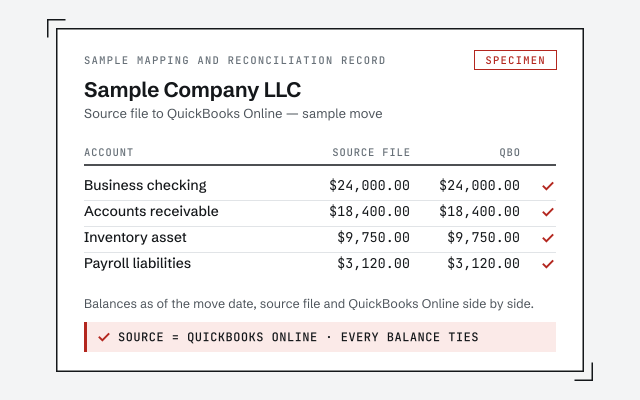
A real mapping and reconciliation record

The written map of what moved, what was rebuilt, and the before-and-after reconciliation you receive when the move closes.

Our methodology

How we prove the QuickBooks Online file reconciles back to Desktop. Read exactly how.

Read the full method

Response commitment

A real specialist replies within one business day, in writing.

Remote-first, nationwide

Mon–Sat · 8am–6pm CT

We migrate entirely remote — secure read-only or screen-share access to your Desktop file, and every mapping decision documented in writing before cutover.

  • Texas
  • Florida
  • California
  • New York

Questions about Desktop to Online migration

Does everything move from QuickBooks Desktop to Online?

No, and any honest answer says so up front. Your lists, account balances, open invoices and bills, and posted transaction history carry over. What changes are the software-specific pieces — memorized transactions, some report layouts, the inventory costing method, and most payroll detail — which are rebuilt or set up deliberately in QuickBooks Online. We map exactly what changes for your file before we move it.

How long does a Desktop-to-Online migration take?

It depends on the size and age of the file and whether it needs cleanup first. A small, tidy Desktop file can move in a few days; a large file with years of history, inventory, or payroll takes longer. We scope the real timeline during the free review, before any work starts, so you are not guessing.

Will my historical reports survive the move to QuickBooks Online?

The numbers behind them do. Because we carry the transaction history and balances across, your profit and loss and balance sheet for prior periods still add up in QuickBooks Online. Some report layouts and memorized reports have to be rebuilt, but the underlying figures they draw on come with the data.

How do you prove the converted file is accurate?

We reconcile the QuickBooks Online file back to the Desktop file. Before cutover we save Desktop's trial balance and key reports, then confirm QBO produces the same balances to the penny. Migration without that proof is just hoping the numbers matched; the validation stage is where we show they did.

Can I keep using QuickBooks Desktop instead of moving?

Sometimes, yes. If your Desktop version still does everything you need and is still receiving service, there is no rule that says you must move. But Intuit has shifted its focus to QuickBooks Online, new Desktop subscriptions are no longer sold to most new U.S. businesses, and each annual version loses payroll, payments, and security updates roughly three years after release — so for many files the move is a question of when, not if.

What happens to my inventory when I move to QuickBooks Online?

Inventory is the classic edge case. Desktop and Online can value stock differently, and item-level history does not always carry the same way. We confirm how your items and quantities land and reconcile the inventory asset balance so it matches Desktop, rather than assuming the conversion got it right.

Does payroll history transfer to QuickBooks Online?

Not cleanly, and pretending otherwise is where migrations go wrong. Year-to-date figures and prior filings usually need to be set up deliberately in the new file. We coordinate that with your payroll provider or CPA instead of hoping a tool carried it across.

Can you move just the current year instead of all my history?

Yes. If you only need an opening balance and the current year, we can bring balances as of a chosen date and leave the deep history in the archived Desktop file, which you keep. It is often faster and cheaper. We help you weigh how much history you actually need during the review.

What does a Desktop-to-Online migration cost?

It is a fixed fee quoted after a free review, starting from $1,500. What moves the number is data volume, the age and health of the file, add-ons like inventory or payroll, and whether the file needs cleanup before it moves. We never quote blind or bill by the surprise.