Skip to content
QB Specialist

Migrate to QuickBooks

Migrate to QuickBooks, proven to reconcile.

Migrating to QuickBooks means moving your books out of another accounting system — Xero, Sage, or something older — and into QuickBooks, so the new file continues your history instead of starting blank. The process is the same whichever system you come from: we read the source, map its accounts and balances to QuickBooks, convert what carries, then reconcile the new file back to the old one before you go live. We move the data, then prove it ties.

Last reviewed July 2026

  • Data moved, not retyped
  • Reconciled to your old system
  • Fixed scope, quoted first

What it means to migrate to QuickBooks

Migrating to QuickBooks is the work of moving an accounting file's data — its accounts, names, open balances, and history — out of the system you use today and into QuickBooks, so the new file continues the story of the old one rather than beginning on a blank page.

That is a different job from setting up a fresh company file. A fresh file starts at zero; a migration carries your existing chart of accounts, your customers and vendors, your open invoices and unpaid bills, and the history behind your prior-period reports into QuickBooks. The destination is usually QuickBooks Online. Our real specialty is QuickBooks bookkeeping with a reconciliation-first method, so we frame every move the same honest way: we bring the data across, then prove the converted file reconciles to the system it came from. This page is the general route for coming to QuickBooks from another product; if you are moving within the QuickBooks family — Desktop to Online — the Desktop to Online migration page covers that path directly.

Which system are you coming from?

The move depends on where your data lives now, but the discipline does not — every source is read, mapped, converted, and then reconciled to QuickBooks. Find your current system below for the specifics.

  • Xero to QuickBooks migration — moving a Xero organization into QuickBooks Online: what moves, what to expect on the other side, and how the converted file is validated.
  • Sage to QuickBooks migration — coming from Sage, including remapping the chart of accounts to QuickBooks' structure and reconciling the result to your Sage reports.

If you are coming from a system we have not listed — an older desktop product, a spreadsheet-based book, or a niche package — the framework is unchanged: we read what the source can export, map it to QuickBooks, convert what carries, and prove the new file ties out. The QuickBooks data conversion page walks through the mapping-and-validation mechanics that apply to any source, and the migration hub lists every path we support. Not sure which fits? Start with a free QuickBooks review and we will tell you the route and whether it is worth doing yet.
What carries over and what gets rebuilt

Structural data moves with the file; software-specific items get rebuilt in QuickBooks. Your accounts, names, open balances, and posted history convert; things that live only inside the old program's settings — saved report layouts, recurring templates, reconciliation report history, and some payroll detail — are recreated after the move rather than carried across.

The practical point is that a migration is not all-or-nothing. The parts that determine whether your reports are correct — balances and history — come across. The conveniences you set up once, like a recurring invoice or a memorized report, are quick to rebuild on the QuickBooks side, and we list exactly which of yours fall in that bucket before we move, so nothing you depend on quietly vanishes at cutover. Because products store data differently, the exact split depends on your source system — which is why the Xero and Sage pages spell out the specifics, and why we confirm your file's map before anything moves.

The four stages

How the migration works: source, mapping, validation, cutover

Every move to QuickBooks runs the same four stages in order: read the source, map it to QuickBooks, validate the converted result against the old file, then cut over. The order is deliberate — nothing goes live until it has been proven to reconcile.

The migration flow

How a move to QuickBooks runs: source, mapping, validation, cutover Four stages left to right. Stage 1, Source: your current accounting system — Xero, Sage, or another product — the source of truth. Stage 2, Mapping: lists, balances, and history are mapped and converted to QuickBooks. Stage 3, Validation: the converted file is reconciled to the old one and proven to tie — the stage marked with a verified tick. Stage 4, Cutover: you go live in QuickBooks. The flow runs from a reconciled source of truth to a reconciled, live file. STAGE 1 STAGE 2 STAGE 3 STAGE 4 Source Mapping Validation Cutover XERO / SAGE MAP & CONVERT RECONCILE GO LIVE Your current system Lists, balances, history Prove it reconciles Live in QuickBooks SOURCE OF TRUTH RECONCILED & LIVE
A move to QuickBooks runs source to cutover, but the load-bearing stage is validation: the converted file is reconciled back to your old system and proven to tie before anyone goes live. This four-stage pattern is the same whatever product you come from.

Reading the source first is what keeps the move honest: we save the old system's trial balance and key statements before touching QuickBooks, so there is a fixed target to reconcile against. Mapping is where the judgment lives — deciding where each account and balance belongs in QuickBooks — and we get your sign-off on that map before anything is converted.

How we prove the new file reconciles

We prove a move to QuickBooks by reconciling the new file back to the old one — same trial balance, same balance sheet, same key reports, to the penny — before you rely on it. Validation is not a courtesy step at the end; it is the reason to hire a specialist at all.

Anyone can push data through a conversion tool. The hard, valuable part is confirming that what came out the other side matches what went in. Our method is verification, not assertion: we re-run the source system's key statements inside QuickBooks and account for every difference until the two tie. That same reconciliation-first discipline runs through everything we do, and it is why a migration ends with proof rather than a promise. You can read exactly how the checking works in our methodology, and the data conversion page details how lists and history map across on the way in. If the file will not reconcile, we do not cut over — we find out why first.

How you can verify us

You do not have to take our word for it. Here is the evidence you can check — the deliverable you receive, the method we use to prove the converted file reconciles, and our response commitment.

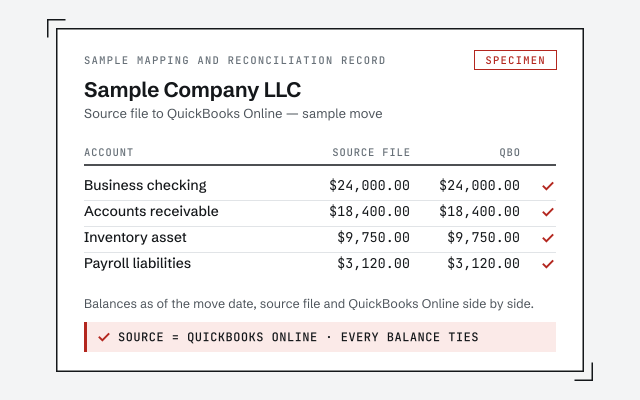
A real mapping and reconciliation record

The written map of what moved, what was rebuilt, and the before-and-after reconciliation you receive when a move closes.

Our methodology

How we prove the converted file reconciles to your old system. Read exactly how.

Read the full method

Response commitment

A real specialist replies within one business day, in writing.

Remote-first, nationwide

Mon–Sat · 8am–6pm CT

We migrate entirely remote — secure read-only or screen-share access to your files, and every mapping decision documented in writing before cutover.

  • Texas
  • Florida
  • California
  • New York

Questions about migrating to QuickBooks

What does it mean to migrate to QuickBooks?

Migrating to QuickBooks means moving your existing accounting data — your chart of accounts, customers and vendors, open invoices and bills, transaction history, and balances — out of whatever system you use now and into QuickBooks, so the new file continues your books instead of starting from zero. It is different from a fresh setup, which begins blank; a migration carries your history and prior-period reporting across.

Which systems can you migrate from?

Any accounting system that lets us export or read its data. The two most common moves are from Xero and from Sage, and each has its own page for the specifics. But the framework is the same for a less common source: we read the file, map its accounts and balances to QuickBooks, convert what carries, and reconcile the result to your old reports. If you are coming from something we have not named, the process does not change.

Does everything transfer into QuickBooks?

No, and any honest migration answer says so first. Your accounts, names, open balances, and posted history convert; software-specific items — saved report layouts, recurring templates, reconciliation history, and some payroll detail — are rebuilt in the new file rather than carried across. We map exactly what moves and what has to be recreated for your file before we start, so nothing you rely on disappears quietly.

How do you prove the migration was accurate?

We reconcile the converted file back to the old one. Before cutover we save the source system's trial balance and key reports, then confirm QuickBooks produces the same balances to the penny and account for every difference until the two tie. Migration without that proof is just hoping the numbers matched; the validation stage is where we show they did.

Should I migrate my history or just start fresh in QuickBooks?

It depends on how much of the past you need and how healthy the current file is. Migrating keeps your prior-period reports intact but carries any existing mess with it; starting fresh gives you a clean slate but leaves history behind in the old system. We help you weigh both plainly during the free review — sometimes a cleanup first, then a migration, is the right order.