Skip to content
QB Specialist

QuickBooks integration setup

Integrations that post clean, not create cleanup.

Integration setup connects your apps, bank feeds, and tools to QuickBooks and maps each one to the right account, so transactions flow in automatically instead of piling up as duplicates and miscategorized data. We set up the connection and the mapping that decides where every feed lands.

Last reviewed July 2026

  • Every feed mapped to an account
  • Checked for duplicates first
  • Documented so you can trace it

Would you rather talk through your setup first? Book a call — a short, scheduled conversation with a senior specialist, no obligation.

What QuickBooks integration setup is

QuickBooks integration setup connects the systems your business already runs — bank accounts, payment tools, sales channels, and other apps — to QuickBooks, and maps each one so its transactions post to the right accounts automatically instead of being typed in by hand.

The connection is only half of it, and it is the easy half. The part that determines whether an integration helps or hurts is the mapping: the rules that decide which account a sale, a fee, a deposit, or an expense lands in when it arrives. Turn a feed on without settling that, and QuickBooks fills up fast with data sitting in the wrong places. Done well, integration setup means the numbers arrive already categorized and reconciled to their source, which is the foundation a full QuickBooks setup is built to support. It is deliberately close to, but distinct from, cleanup: setup gets new data flowing correctly, while cleanup corrects the history a bad connection left behind.

Which integrations businesses actually connect

Most businesses connect a handful of categories rather than dozens of apps: bank and card feeds, a payment processor, a sales channel, an expense or receipt tool, and payroll. Each category feeds a different set of accounts, which is exactly why mapping matters.

How a feed lands

An external feed mapped into the right QuickBooks accounts An outside system sends transactions toward QuickBooks. Without mapping, the data lands unassigned; with mapping, each transaction type is routed to the correct income, fee, or expense account and posts once. Illustrative example, not a measured figure. OUTSIDE SYSTEM Bank / app feed SENDS Mapping QUICKBOOKS Income Fees Expense MAPPED ONCE, TO THE RIGHT ACCOUNT
A connection only helps once each transaction type is routed to the account it belongs in and posts a single time. The example is illustrative.

Bank and credit card feeds bring in cleared activity and are the backbone most other integrations reconcile against. A payment processor records what customers paid alongside the fees it kept, so both the income and the fee need their own accounts. Sales channels — an online store or a point-of-sale system — summarize orders, taxes, and payouts that have to be split back apart. Expense and receipt tools push bills and purchases in with a category attached. And payroll, whether run inside QuickBooks or in a separate system, mirrors wages and taxes back into the file. We do not promise a specific product's feature list we cannot verify for your file; we assess what you actually run and connect it so it fits your accounts.
How we set up an integration so it maps correctly

We do it in an order that prevents mess: confirm the chart of accounts can receive the data, make the connection, define where each transaction type posts, then watch real activity flow through before anything is left running unattended.

Mapping is the heart of the work. A payment processor's payout, for example, is not one number — it is gross sales, minus fees, netting to the deposit that hits your bank. If the integration is told to book the whole payout as income, the fees vanish and every downstream report is wrong. So we settle, transaction type by transaction type, exactly which account each lands in, and whether the bank feed or the app is the system of record for a given entry, so the same activity is never recorded twice. Then we let a few days of live data run through and check it against the source before signing off. Nothing is assumed: you get a written note of what connects where and how it posts, following the same verification-first method behind our methodology.

Why a bad integration quietly creates cleanup work

A misconfigured connection does not announce itself — it just posts wrong data, correctly and automatically, day after day, until months of it have stacked up behind you.

The two failures we see most are duplication and miscategorization. Duplication happens when a bank feed and an app both record the same sale or deposit, or when a new feed is switched on over transactions you already keyed by hand, so cash and income inflate together. Miscategorization happens when the mapping is vague — every processor payout dropped into one "sales" account, fees buried inside income, expenses landing in a catch-all. Because an integration runs unattended, both compound silently: by the time a report looks off, there can be a quarter or more of entries to unwind. That unwinding is a cleanup, and re-mapping the connection so it stops recurring is integration setup — which is why we so often pair the two, and always tell you which part is fixing history and which part is fixing the flow.

Timeline

How long integration setup takes

Most integration setups take a few days to about a week: a day-0 review of what you run, connection and mapping, then a short window of live data to confirm it posts correctly before handback. Several channels or a file that also needs cleanup first runs longer.

  1. Free review

    Day 0

    We look at what you already use and your chart of accounts, then scope the connections and quote a fixed fee.

  2. Connect and map

    Days 1–3

    Each app, feed, and tool connected and mapped to the accounts its transactions belong in.

  3. Watch live data

    Days 4–5

    Real transactions run through; we check them against the source and confirm nothing duplicates.

  4. Hand back

    Day 6

    Integrations live, a written map of what connects where, and a call to walk it through.

When you don't need us for integration setup

Skip us when the connection is simple and your file is already sound. A single bank feed on a well-built chart of accounts is often a few clicks you can do yourself — there is no reason to pay for that.

If you understand the mapping, your chart of accounts is set up well, and you can tell when a feed would double up with something already recorded, a straightforward integration is within reach on your own. Where it earns a specialist is when several systems feed the same accounts, when a processor's payouts need splitting apart, or when a connection has already left a mess that has to be cleaned up before a new mapping will hold. We will tell you which case you are in during the free review — including when the honest answer is that you can handle it yourself. If a full new-file build is what you actually need, that is a QuickBooks setup, and integration is one step inside it.

How to verify our integration setup

You don't have to take our word for it. Here is the evidence you can check — the deliverable you receive, the method we use to prove each feed posts correctly, and our response commitment.

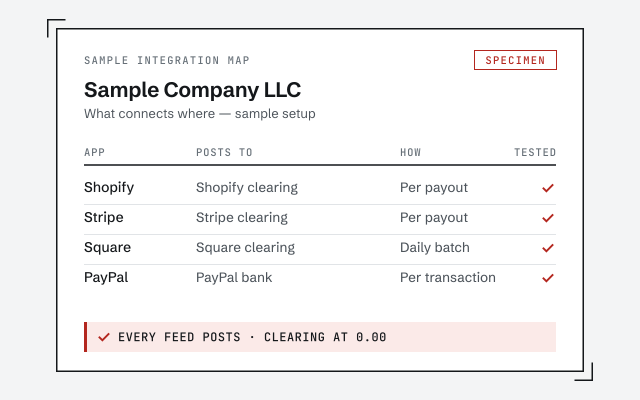
A real integration map

The written map of what connects where and how each feed posts that you receive when setup closes.

Response commitment

A real specialist replies within one business day, in writing.

Remote-first, nationwide

Mon–Sat · 8am–6pm CT

We work entirely remote — secure read-only access to your file, screen-share whenever you want to watch, and every connection and mapping documented in writing.

  • Texas
  • Florida
  • California
  • New York

Questions about integration setup

What does connecting an app to QuickBooks actually do?

A connection lets another system send transactions into QuickBooks automatically — sales, deposits, fees, or expenses — instead of you typing them. The value is only there when each of those transactions lands in the right account. We set up the connection and, just as importantly, the mapping that decides where the data posts.

Will connecting my bank create duplicate transactions?

It can, if a bank feed and another app both record the same activity, or if a feed is added on top of entries you already keyed by hand. That is one of the most common sources of drift we see. We set the connection up so each transaction is recorded once, and we check for overlap before turning a new feed on.

Which apps can you connect to QuickBooks?

We work in the same integration categories most businesses use — bank and card feeds, payment processors, e-commerce and point-of-sale, expense and receipt capture, payroll, and time or invoicing tools. Rather than promise a specific product's features we can't verify for your setup, we assess what you already use during the free review and map a connection that fits it.

Do you fix the mess if an integration was set up wrong before?

Yes. A connection mapped to the wrong accounts, or left to double up with a manual entry, leaves months of miscategorized data behind it. Correcting that history is a QuickBooks cleanup; re-mapping the connection so it stops happening is integration setup. We usually do both together and tell you clearly which is which.

Can I just turn on the connections myself?

For a simple bank feed on a clean file, often yes — the connection itself is a few clicks. The part that goes wrong is the mapping: deciding which account each transaction type posts to and making sure nothing doubles up. If your chart of accounts is already set up well and you understand that mapping, you may not need us.

What do I get when integration setup is finished?

Each connected app, bank, and tool feeding QuickBooks with its transactions mapped to the right accounts, checked against real activity so nothing duplicates, plus a written note of what connects where and how it posts. If you continue monthly, we keep those feeds reconciled so the mapping stays correct as your setup changes.